Event Setup Wizard

Create templates to fasten your event set up process. Manage all events on a single page.
You can add or delete unlimited events. Save time for recurring events by using the Copy Existing Event Feature.
Schedule your event sale start/end times to avoid manual set up for recurring events.

Planning a presale for your event tickets? Schedule the sale start/end time and sell tickets in advance.
Create holds to reserve tickets for your special guests.
Create multiple ticket types to give your attendees a wide choice to choose from.

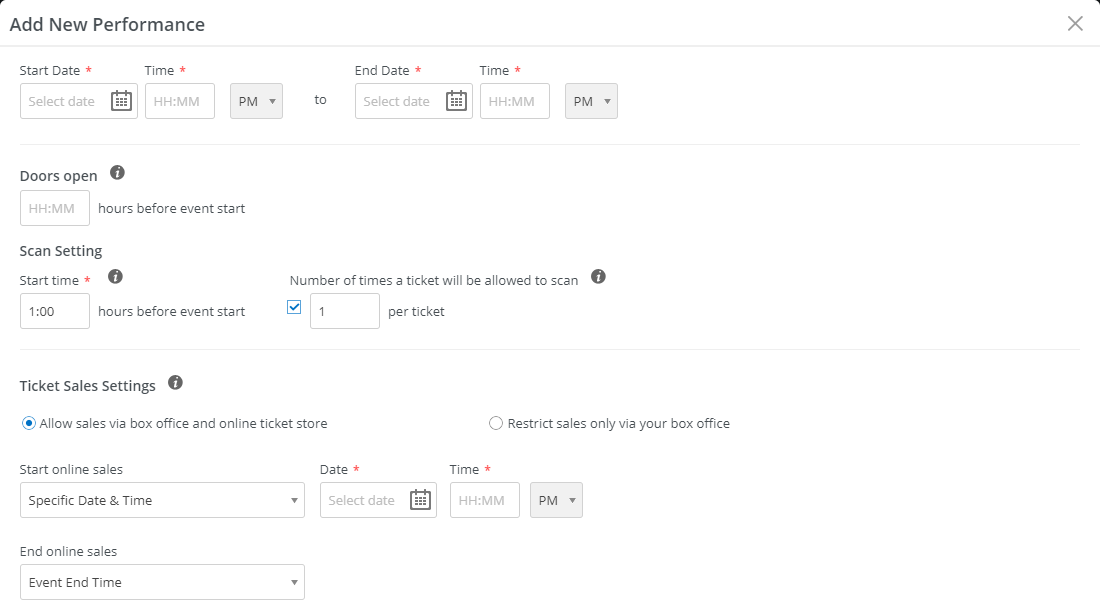
Set scan times and scans per ticket. You can decide how many times you want to scan tickets, for example, once at entry and after an interval.
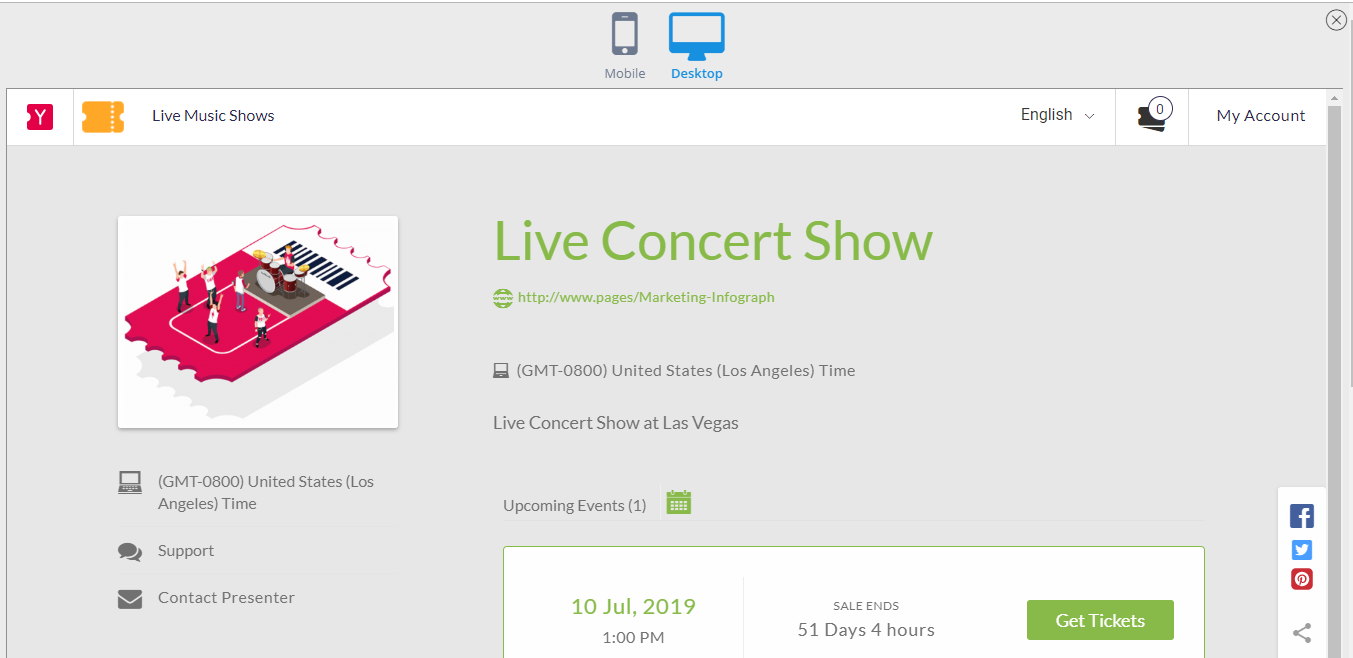
Preview your event for any errors before going live and finally, the last step, publish your event.
Setup your contact details to address any event related queries. For any of the technical queries, the Yapsody 24/7 Support team is available on chat to assist your ticket buyers.
Frequently Asked Question
Steps To Create a General Admission Event
- Sign Up or Login to your Yapsody account
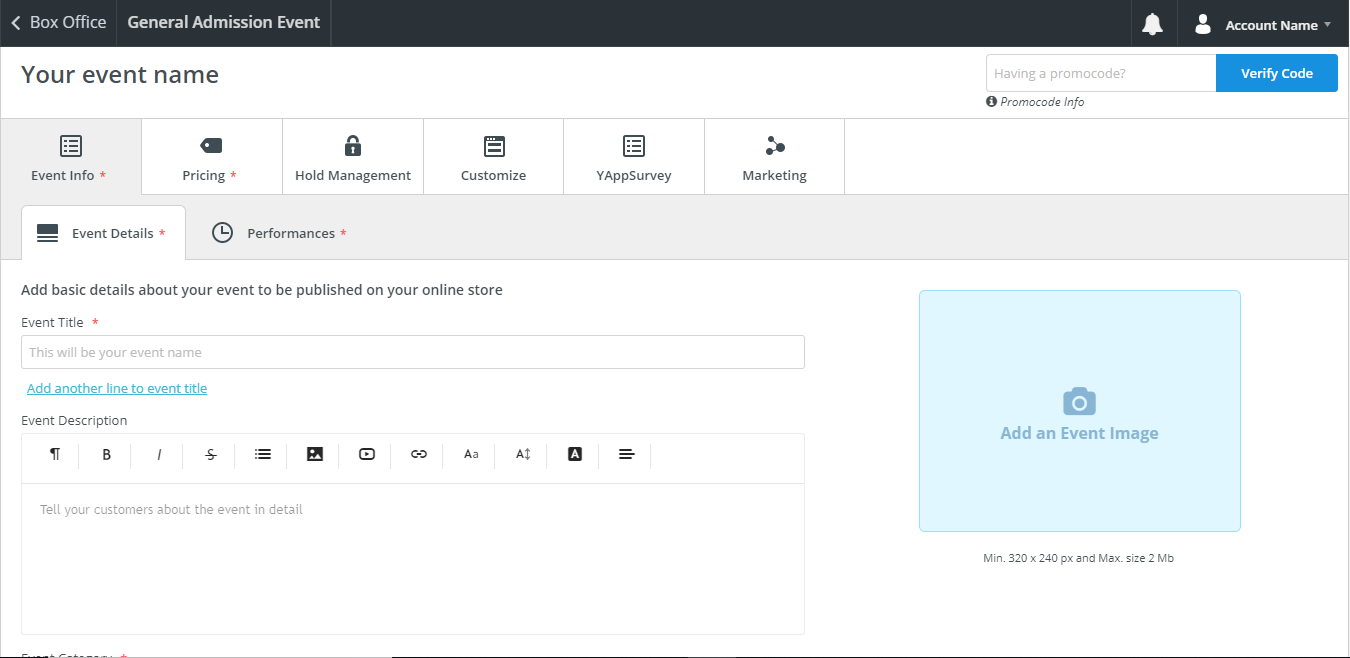
- After clicking on Create Event, choose General Admission
- Click on ‘Add Performances’, to add single or multiple performances.
- Add Ticket Types and Publish your general admission event
Steps To Create a Reserved Seating Event
- After you sign up/log in to your Yapsody account, click on the “Create Event” tab
- After clicking on Create Event, choose Reserved Seating
- Enter the details for the ‘Event Info’ and the ‘Pricing’ fields for creating an event.
- Click on the option ‘Add Performance’ to add performances for your reserved seating event.
Steps For Copying Existing Event Details
- To copy an existing event, click on the “Create an event” button.
- Click on the Copy Existing option.
- Select from a drop-down list of your existing events whose event details you wish to copy.
- All the details of the previous event get copied into this event
Steps To Add Multiple Performances In An Event
- Select the event for which you want to add performance.
- Select ‘Performances’ under Event Info.
- You will need to enter the Date & Time for the new performance and the Door open time.
- You can add multiple performances to your event by following the same steps
Steps To Combine General Admission & Reserved Seating Sections
- While creating an event, you need to create a Reserve Seating event and add General Admission Section in it.
- Click on ‘Add Section’ under the Tab Manage Sections.
- You can add a General Admission or a Reserved Seating section as per your seating chart.
- You can also add multiple General Admission and Reserved Sections as per your seating chart.
To know more about our features click here.
You can sell your event tickets faster with us
How does it work? First of all, we offer premium ticketing with very low fees. And low fees helps you to keep your ticket prices low, resulting in more sales and more sell-outs!
SIGN UP NOW TO EXPERIENCE THE MAGIC