Customize Your E-Ticket

Customize your ticket just as awesome as your event.

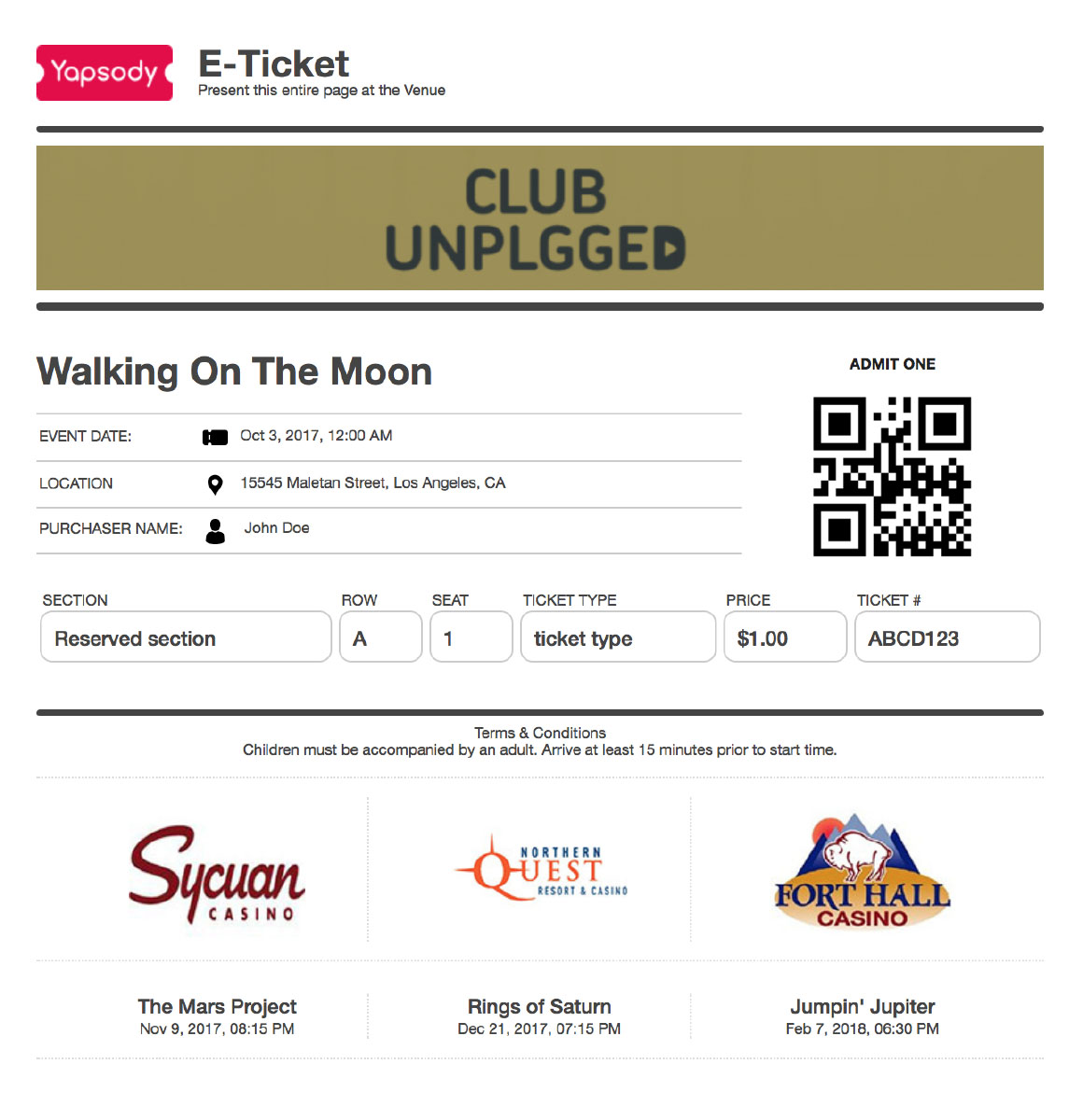
Your ticket design reflects your brand identity and may not be restricted to some ticket provider’s bland formats. Use event related imagery and illustrations to get your attendees excited about your event. What’s more? Add upcoming event details in your ticket to promote your next event.

Try it out now. Get a Free Trial for First 50 Tickets Now!

Sign up now for FREE

Ticket customization - Screenshot 1
  • Add advertisements and sponsors to your E-tickets


  • Instantly select upcoming events to promote on your E-ticket


  • Preview your E-ticket before going live


  • Traditional BOCA and Thermal ticket option also available for ticket printers

Frequently Asked Question

In the Event Setup Wizard, you can preview the E-ticket exactly the way it will appear to your customers.

  1. Select an event from your calendar or create a new event in your Virtual Box Office interface.
  2. If Existing Event – click on ‘Edit’ button in the top right-hand corner > select the “Customize” tab.
  3. Post Customization click the “E-Ticket Preview” button to preview your E-ticket.

Learn more on Steps to preview E-tickets

Follow the below-mentioned steps to add Sponsor images to E-tickets:

  1. Click Customize tab > E-Ticket in your Virtual Box office interface.
  2. Select Upload image. NOTE: Supported image dimensions: Minimum dimension 148px by 130px and Maximum 2 MB.
  3. You can select as many as 3 sponsors using the above steps.
  4. Click Upload and the selected images would be uploaded and displayed on your E-Ticket

Detailed information on uploading Sponsor Images

To add terms and conditions on the e-ticket kindly do the following:

  1. Either click “Create Event” button or select the existing event to edit
  2. Click Customize > E-ticket to Configure your E-Ticket
  3. Add your Terms and Conditions in the blue box just below Terms and Conditions.

Get Detailed information on adding TnC

To add upcoming events on your tickets do the following

  1. Either click “Create Event” button or select the existing event to edit
  2. Click Customize > E-ticket to Configure your E-Ticket
  3. At the bottom of your E-Ticket, add the ‘Upcoming Event Details’ for your ticket buyers
  4. Select three upcoming shows you wish to be displayed on your e-ticket.
  5. Save settings and preview your e-ticket.

Get a detailed walkthrough here.

The different online and offline options for E-ticket Scanning are:

  1. YapScan for iOS & Android
  2. iOS External Scanner
  3. External USB Scanner

Learn more about our ticket scanning options here

To know more about our features click here.

Stay updated with event industry trends

Ticketing Features
Features July 3, 2020

Premium Ticketing Features To Create Events In The COVID Era

As we enter the second half of 2020, event regulations and gatherings seem to have caught on along with the phase-wise re-opening. Needless to say, many event organizers and venue…
Event Marketing Tactics
Event Marketing June 29, 2020

Event Marketing Tactics To Improve Brand Presence In The COVID Era

Online engagement is at an all-time high and so are the event marketers who are vying for your audience’s attention. With the “New Normal” upon us, it seems that the…
USA Live Concerts
Event Planning June 26, 2020

How Likely Is It For The People Of USA To Attend Live Concerts?

With summer setting in just in time for the phase-wise opening in the USA, you might consider planning a live concert or show in your region. Regulations easing off and…
VIEW ALL POSTS

You can sell your event tickets faster with us

How does it work? First of all, we offer premium ticketing with very low fees. And low fees helps you to keep your ticket prices low, resulting in more sales and more sell-outs!

SIGN UP NOW TO EXPERIENCE THE MAGIC