Create Questionnaires & Surveys
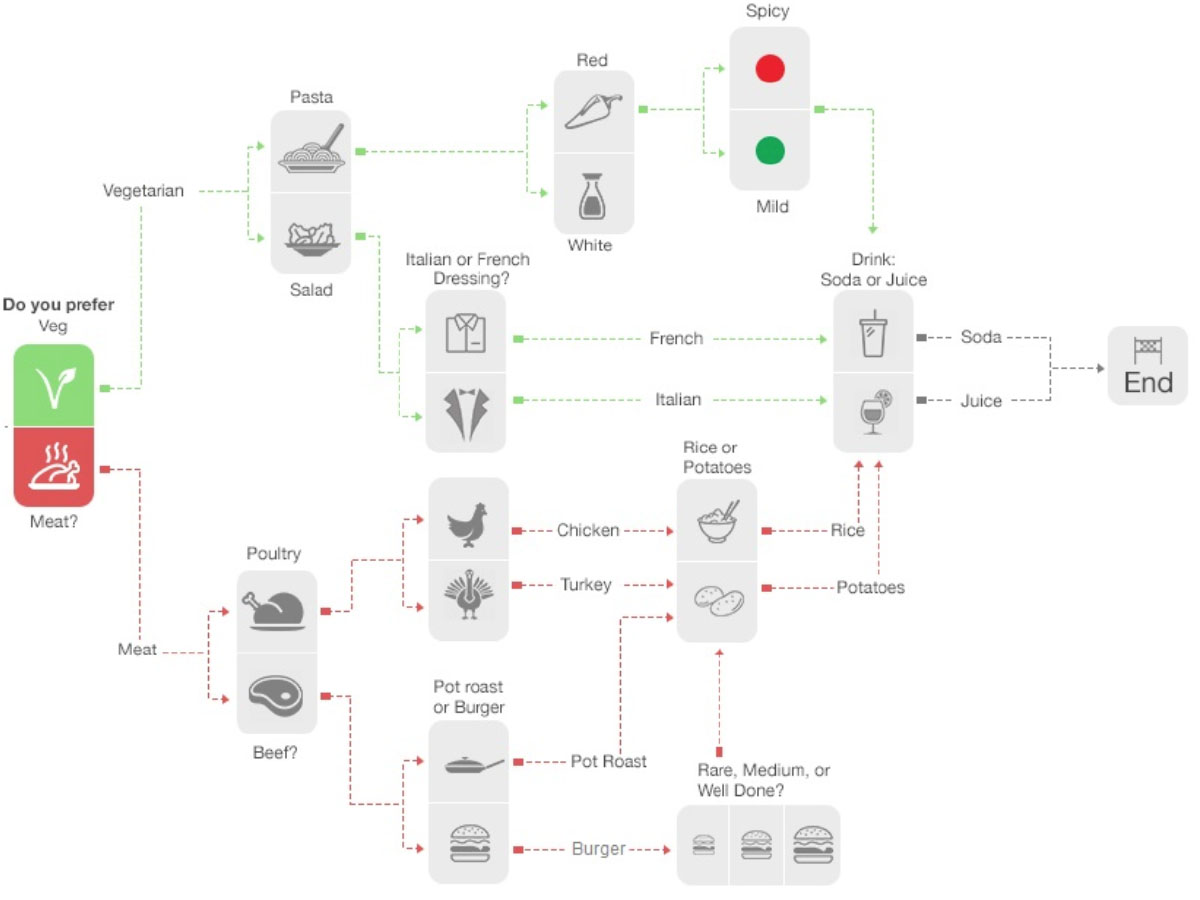
A professional tool for creating complex, logic-based attendee questionnaires with unlimited conditionals for deep-dive data collection


Archive questionnaires and apply them to future events

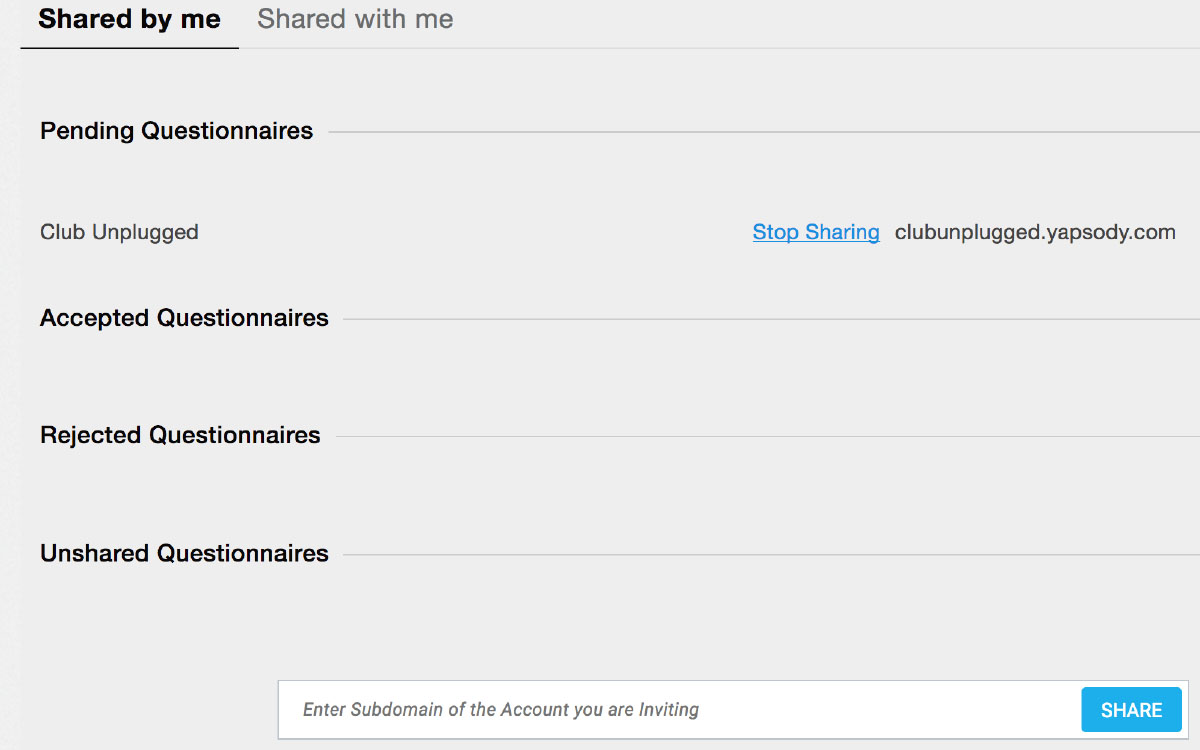
Share questionnaires across multiple presenter accounts rather than having to recreate them
Frequently Asked Question
- Under your Account name drop-down, go to “Settings” and select the option YAppSurvey.
- Select the option ‘Questionnaire Builder’ displayed on the left side of the screen to build a survey for your customers.
- You will get a pop-up window to create your surveys. Add a title to your survey and click on ‘Save’.
- Select the questions from the left-hand side and add questions by dragging them on the right-hand side or by using the attach option.
- Once, you have added all the questions for your survey. You will have an option to set logic to your survey.
Yapsody captures the attendees’ information which can be retrieved by the presenters. The Attendee List report provides detailed information about the purchaser and the attendees like name, email, transaction number, ticket delivery method, etc.
- Select the Event you want to view the Attendee details filled by attendees.
- You will be displayed the event details on the right-hand side. Click on the option “Attendee List”.
- You will be displayed the Attendee List report with 2 options ‘Basic Questionnaire’ and ‘YAppSurvey’. Select the option ‘YAppSurvey’.
- You can export the complete Attendee List Report in a CSV format using the Print CSV option
- Once, you build a survey with the selected set of questions you will need to link it with your event for the customers to enter the details while booking tickets.
- On editing the event, you will be displayed tabs like Event Info, Pricing, YAppSurvey etc. Select the YAppSurvey tab.
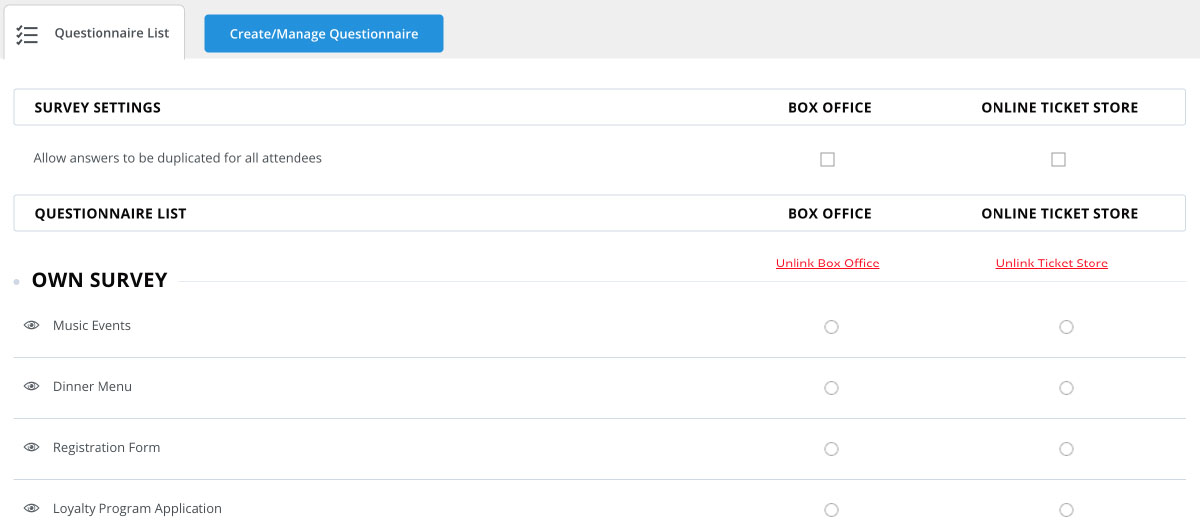
- You will be displayed the option Questionnaire list with the Questionnaires created by you.
- Select the radio button to enable the Questionnaire for your Box Office / Online Store or both.
- You can disable the survey linked by you to your event for your Box Office or Online Store transactions. You will need to click on the option ‘Unlink BoxOffice’ or ‘Unlink Ticket Store’ respectively to disable the Questionnaire
Through YAppSurvey, you have the option of making it mandatory wherein your ticket buyers can checkout with tickets only after they’ve submitted answers to your survey questions.
- Hover on the account name at the top left and click “YAppSurvey” from the drop-down list.
- Now click on “Create/Manage Questionnaire” at the top just below the search option.
- You will see a list of questions that have been already added to the Question Bank, in order to make an existing question mandatory.
- Now check the box before “Mandatory” and click on “Save” to make the question mandatory.
- You can also make a New Question Mandatory while adding it to the list, all you need do is click on “Add New Question” at the top after clicking on “Question bank” and then check the box before “Mandatory”
To know more about our features click here.
You can sell your event tickets faster with us
How does it work? First of all, we offer premium ticketing with very low fees. And low fees helps you to keep your ticket prices low, resulting in more sales and more sell-outs!
SIGN UP NOW TO EXPERIENCE THE MAGIC