
Premium Ticketing Features To Create Events In The COVID Era
As we enter the second half of 2020, event regulations and gatherings seem to have caught on along with the phase-wise re-opening. Needless to say, many event organizers and venue…

With YAppSurvey, you can create multiple logic-based surveys for your event attendees. You can create questions and add them to your YAppSurvey. While answering the survey, the upcoming question will depend on the answer provided for the previous question. You can also make your questions mandatory while creating YAppSurvey.
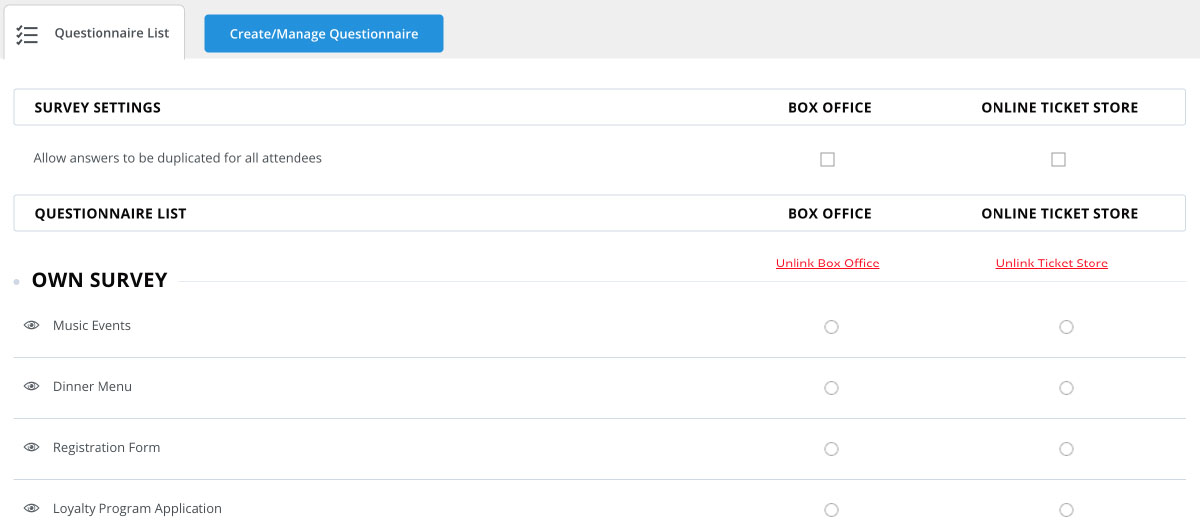
For example, you wish to collect information from guests about their food choices. You can set the options as Yes or No. If they select Yes, they will be redirected to the next question for dessert. On selecting No, he will not be displayed the next question and will have an option to submit and finish the survey.
Under your Account name drop-down, go to “Settings” and select the option YAppSurvey.

Select the option Question Bank to add your custom questions.

You will be displayed the custom questions added by you in the Question List.
For Example – Do you wish to make dinner reservations at the restaurant?

Select the option ‘Questionnaire Builder’ displayed on the left side of the screen to build a survey for your customers. Click on the option ‘Create Questionnaire’.

You will get a pop-up window to create your surveys. Add a title to your survey and click on ‘Save’. You will be displayed all the questions from the question bank on the left-hand side.

Select the questions from the left-hand side and add questions by dragging them on the right-hand side or by using the attach option. You can only add questions with response format – Radio Button and Drop Down menu in a Logic-based Survey.

Once, you have added all the questions for your survey. You will have an option to set logic to your survey. Click on the option ‘Set Logic’.

You will be displayed the choices mentioned by you for your ticket buyers for the particular question.

You have the option ‘Select a Question’ for each option. Click on select a question and select whether you wish for your ticket buyer to fill in the next question based on his choice of an answer for this particular question. If not, allow them to submit and finish the survey on the basis of their choice.

Click on ‘Apply’. Your logic for the survey will be applied and customers will be displayed the questions accordingly.

Learn more about 3 Types of Surveys To Improve Your Event Planning.